Showing posts with label 40. Show all posts
Showing posts with label 40. Show all posts
Thursday, September 7, 2017
Asus Zenfone C V4 11 40 124 Software Update
Asus Zenfone C V4 11 40 124 Software Update

In this blog i am going to post all about new Software update for Zenfone C. This update contain some bug fix and some other. This update version is ( V4.1.40.124 ). Zenfone c is just released few months ago therefore there is no big updates comes. Small software updates and bug FIX updates are coming. Now you can see what are the changes and how to install the updates.
| Description | ASUS ZenFone C=ZC451CG (Z007) software Image: V4.11.40.124 for WW SKU Improvement Item: 1.Fixed Vodafone APN setting issue 2.Increase the volume of ringtone 3.Modify the google search widget appearance Steps of Update: 1.Check software version of your device** 2.Download device software and Update SOP (From �Manual� Item) 3.Only apply to same SKU update, Example: WW->WW , 4.Software update cannot transfer the software SKU and downgrade the software version. 5.Wrong SKU may cause update failure, please update the same SKU version only. *How to know the device model? Path: Settings->About-> Model number Example: ASUS_T009 **How to know the device software version? Path: Settings->About-> software information->Build number ***System upgrade may cause part of data missing, please buckup your important data before system upgrading |
|---|---|
| File Size | 913.14 MBytesupdate 2015/07/17 |
| Download from | Global |
Download and update otherwise you can also do it on OTA update (Settings > About > System Update)
If you want to Update manually then follow THIS TUTORIAL
download file now

Wednesday, April 1, 2015
Full Firmware Zenfone 6 V2 20 40 11 WW V2 20 40 8 TW CN
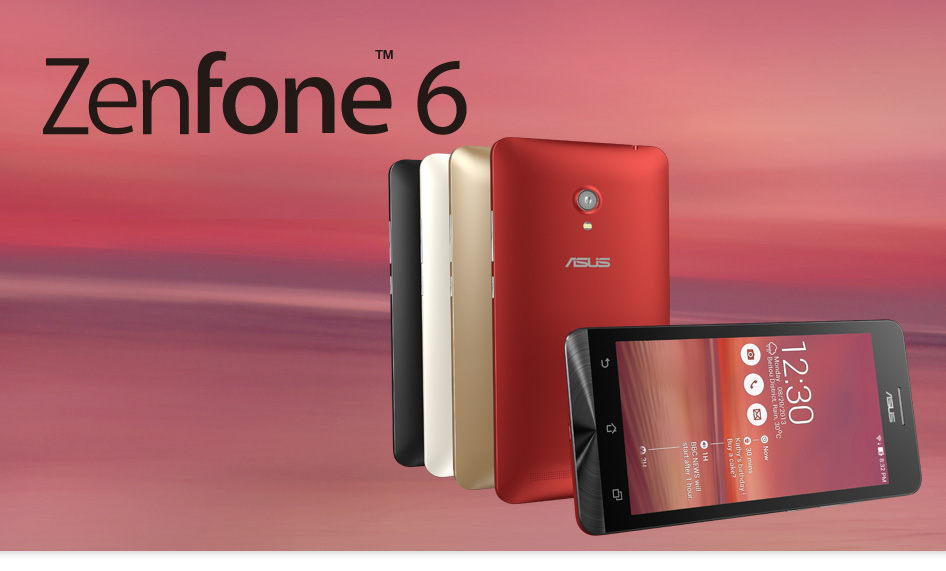
WW VERSION
Version V2.20.40.11(WW)
| Description | ASUS ZenFone 6(T00G) software Image: V2.20.40.11 for WW SKU only* Improvement Item: 1.Fixed the reddish issue of front camera 2.Fixed create new interface get NULL value 3.Fixed hookey not hold on when SIM2s phone call. 4.Fixed - APK files can’t be send via Bluetooth 5.Enable SD card OTA update on recovery mode 6.Fixed Line will crash when switch the front/rear camera 7.Fixed - Audio playback on Bluetooth headsets (A2DP) is too soft 8.Fixed maxxaudio effect is stopped when turning on google equalizer 9.Fixed - FM radio reception breaks after 15 minutes 10.Fix Cloud Print version update issue 11.Fix USSD issue which randomly fails to be executed correctly when using Secondary SIM 12. Fix APN lost when update to KK 13. Add info URL for ASUS Updates 14. Add ASUS Feedback APP New Feature: 1. Add release note website link for ASUS Software Update, users can check release notes details directly through the link 2. Add Feedback APP for users to communicate and send feedback to ASUS fast and easily For more information please refer to: WW:http://www.asus.com/zentalk/ReleaseNotes. |
|---|
| File Size | 743,38 (MBytes) update 2014/11/12 |
|---|---|
| Download from | Global |
ZENFONE 6 firmware:
CN VERSION
Version V2.20.40.8(CN)
| Description | ASUS ZenFone 6(T00G) software Image: V2.20.40.8 for WW SKU only* Note: Please make sure update software version V1.18.40.12 first before update to software version V2.20.40.8 Improvement Item: 1.Fixed the reddish issue of front camera 2.Fixed create new interface get NULL value 3.Fixed hookey not hold on when SIM2s phone call. 4.Fixed - APK files can’t be send via Bluetooth 5.Enable SD card OTA update on recovery mode 6.Fixed Line will crash when switch the front/rear camera 7.Fixed - Audio playback on Bluetooth headsets (A2DP) is too soft 8.Fixed maxxaudio effect is stopped when turning on google equalizer 9.Fixed - FM radio reception breaks after 15 minutes 10.Fix Cloud Print version update issue 11.Fix USSD issue which randomly fails to be executed correctly when using Secondary SIM 12. Fix APN lost when update to KK 13. Add info URL for ASUS Updates 14. Add ASUS Feedback APP New Feature: 1. Add release note website link for ASUS Software Update, users can check release notes details directly through the link 2. Add Feedback APP for users to communicate and send feedback to ASUS fast and easily For more information please refer to: WW:http://www.asus.com/zentalk/ReleaseNotes. |
|---|
| File Size | 649,39 (MBytes) update 2014/11/03 |
|---|---|
| Download from | Global |
ZENFONE 6 firmware:
TW VERSION
Version V2.20.40.8(TW)
| Description | ASUS ZenFone 6(T00G) software Image: V2.20.40.8 for TW SKU only* Improvement Item: 1.Fixed the reddish issue of front camera 2.Fixed create new interface get NULL value 3.Fixed hookey not hold on when SIM2s phone call. 4.Fixed - APK files can’t be send via Bluetooth 5.Enable SD card OTA update on recovery mode 6.Fixed Line will crash when switch the front/rear camera 7.Fixed - Audio playback on Bluetooth headsets (A2DP) is too soft 8.Fixed maxxaudio effect is stopped when turning on google equalizer 9.Fixed - FM radio reception breaks after 15 minutes 10.Fix Cloud Print version update issue 11.Fix USSD issue which randomly fails to be executed correctly when using Secondary SIM 12. Fix APN lost when update to KK 13. Add info URL for ASUS Updates 14. Add ASUS Feedback APP New Feature: 1. Add release note website link for ASUS Software Update, users can check release notes details directly through the link 2. Add Feedback APP for users to communicate and send feedback to ASUS fast and easily For more information please refer to: WW:http://www.asus.com/zentalk/ReleaseNotes. |
|---|
| File Size | 758,99 (MBytes) update 2014/10/29 |
|---|---|
| Download from | Global |
Sunday, March 29, 2015
40 Google Nexus 7 Tablet Tips and Tricks
Below is a list of forty tips, tricks, and shortcuts for the Google Nexus 7 tablet, from basic getting started tips for the beginner to hacks and ROMs for advanced users.

2. Screen Rotation – By default, the Nexus 7 is locked in portrait mode. You can switch to auto-rotate by pulling down the notifications menu at the top of the screen and tapping the rotate icon to the right of the date. Note that the homescreen doesn’t support landscape mode, however (see #11 and #38 to fix that).
3. Notifications – Pulling down the notifications menu at the top of the screen grants access to the button for the Settings Menu, the time and date, and a list of all your recent emails, events, activities, app updates, etc. Tap a notification to access it, swipe left to remove it from the list, or hit the button in the upper right corner to close all notifications. Sounds for notifications can be changed in Settings > Sound > System. The volume of notifications can be set separately from the master volume by pressing the settings button next to the on-screen volume slider. Turn off notifications by going to Settings > Accounts > Sync.
4. Widgets – The homescreens can display widgets, bookmarks, individual ebooks, folders for certain apps, and a lot more (it all depends on what apps you have installed). Widgets are located in the widget section of the app drawer. By default the homescreen shows a large Google widget. You can remove it and any other widget simply by long-pressing and dragging to the remove icon at the top of the screen. You can also re-size many widgets by long-pressing and then adjusting the blue lines that appear.
5. Folders – Android supports creating folders on the homescreen to group apps, bookmarks, and ebooks together. Simply hold and drag an icon onto another. You can also name the folders.
6. View Available Storage Space and RAM – Since the Nexus 7 has limited storage space, you are going to want to keep an eye on the available space from time to time. Hit Settings > Storage. To see available RAM go to Settings > Storage > Apps > Running.
7. Uninstalling Apps – The easiest way to uninstall an app is to press and hold the app icon from the list of apps in the app drawer and then drag it to the top of the screen where it says uninstall. If it only shows App Info and no uninstall option is available, then it is a system app and can’t be uninstalled. However, if you drag the app to where it says App Info you’ll have the option to disable the app.
8. Lock Screen – It’s a good idea to go into Settings > Security to configure a lockscreen to make your tablet secure. You can set a password or pattern or even set the Nexus 7 to wake up by showing it your face. For added security you can set it to open when you blink your eyes so a photo will not unlock the screen.
9. Font Size – The font size can be adjusted in Settings > Display > Font Size. There is also a secondary setting for large text in Accessibility > System.
10. Wallpapers – Long-press on any open space on the homescreen to bring up the wallpapers menu. Android has live wallpapers, static wallpapers, or you can use your own photos and pictures or some downloaded from the internet.
12. Amazon Appstore – There’s no question that the Google appstore is the best place to find the widest selection of Android apps, but you can also install the Amazon appstore onto the Google Nexus 7 to take advantage of Amazon’s free daily paid app. Click here to download the Amazon app directly to the Nexus 7. Then you’ll need to follow the next step before installing it.
13. Installing Apps From Outside Google Play: To install apps from appstores and websites other than Google, you need to go to Settings > Security > and then check the box to install apps from unknown sources.
14. Screen Dimming – The lowest brightness setting sometimes isn’t low enough for some people when reading at night with the lights off. With an app like Screen Filter you can adjust the brightness of the screen to as dark as you want it.
15. PDF Reader Apps – Every tablet needs a decent PDF app. Here’s a list of the Best PDF Android apps both free and paid.
16. eReading Apps – The Google Nexus 7 comes with the Google Play Books apps for reading ebooks, but it is severely lacking in features. Below is a list of some of the best ereading apps for Android; and Aldiko will even display ebooks from Google because it supports Adobe DRM.
18. Power Control Widget – One annoying thing about the phone interface on the Nexus 7 is that it doesn’t show quick power controls from the notification menu so you have to go into settings for everything. A workaround is to put the power control widget on the homescreen for easy access to adjust the screen brightness, turn off WiFi, Bluetooth, GPS, and sync.
19. Cloud Storage – Since the Nexus 7 lacks a memory card slot, you are probably going to need to use cloud storage at some point to get around the Nexus 7′s limited storage space. Between Google, Amazon, SugarSync, and Dropbox you can get nearly 20GB of free cloud storage space just for signing up.
20. Wireless Hard Drive – An alternative to using cloud storage is to get a wireless hard drive to expand the Nexus 7′s limited storage space. Kingston Wi-Drives are one option; you’ll need the Kingston Android app too.
21. Alternate Keyboards – If you don’t like the built-in keyboard there are a lot of options for downloading alternate keyboards. To active a new installed keyboard go to Settings > Language & input.
22. Select Text/Copy and Paste – To select text, touch and hold on a word until the highlight and arrows pop up. Drag the arrows to the desired location and tap copy. Then go to any text field, long-press, and select paste.
23. Adobe Flash Player – Flash doesn’t officially support Android 4.1 Jelly Bean and never will. You can try installing an older version of Flash, but it mostly just crashes all the time. Here are some directions for getting Adobe Flash to work that has done the trick for some Nexus 7 owners. Update: Flash works with the Puffin Web Browser.
24. Android Beam – With Android Beam activated you can share web pages, videos, maps, and other content with other Android Beam-supported devices simply by touching the devices’ backs together. Turn on and off in Settings > More > NFC.
25. USB OTG Cable – The Google Nexus 7 supports connecting external keyboards, mice, and game controllers. In most cases you’re going to need a micro USB adapter. Note that the Nexus 7 does not support mounting external memory cards and thumb drives unless it is rooted with StickMount installed. Update: Now there’s an app called Nexus Media Importer that allows you to import and stream music, video, photos and documents from a USB flash drive or SD card without rooting.
26. Offline Google Maps – Google recently updated their Maps app and now it can save maps for offline viewing. Just hit the settings menu in Maps for the option. The limit is only about 87MB worth, however, so it’s not as useful as it could be.
27. Speech to Text – You can use your voice to input text in most cases. Just hit the microphone icon on the keyboard and start talking. This requires WiFi to use.
28. Voice Action Commands – Here’s the list of voice actions commands you can use with Google’s Voice Search, which is activated by tapping the microphone icon on the search bar or by doing #35. Say the phrase and then whatever you are looking for after it.
30. Turn off WiFi – WiFi has a big impact on battery life because apps are always checking for updates. Turning off WiFi when doing offline activities like reading ebooks can save a lot of battery power.
31. Turn off GPS – GPS requires a lot of power so you can save on this by not leaving the Maps app open when not in use or by turning off GPS and location services entirely in Settings > Locations services.
32. Battery Monitoring App – Some poorly coded apps and widgets can drain battery life excessively. One thing to do is install an app like GSam Battery Monitor that keeps track of which apps are draining the most power.
33. Battery Widget – This isn’t exactly a power-saving tip, but one annoying thing about the Nexus 7 is that you have to dig deep into the settings menu just to get the battery percentage. I installed a battery widget app so I could see the exact percentage from the homescreen.
34. Accessing Google Now – Swipe up from the bottom center of the screen or tap the search bar on the homescreen.
35. Google Now Voice Search – With Google Now open all you have to do is say the word "Google" out loud to launch Google voice search.
36. Turn Off Google Now – Don’t like Google spying on you? Well, it’s easy to turn off. Launch Google Now, hit the menu button at the lower right, then settings, then Google Now, and slide the off button at the upper right.
39. Recovery – Here is the thread for Clockwork Mod recovery for the Nexus 7. And here is the thread for TWRP 2.2.1.
40. Nexus 7 ROMs – Here are some early ROMs for the Nexus 7; check XDA for more.
Read more »
The Basics – Getting Started
1. Nexus 7 Guidebook – The Nexus 7 Guidebook contains a lot of useful information for getting started with Google’s new tablet. It comes pre-loaded on the Nexus 7 and is located in the Google Play Books app.2. Screen Rotation – By default, the Nexus 7 is locked in portrait mode. You can switch to auto-rotate by pulling down the notifications menu at the top of the screen and tapping the rotate icon to the right of the date. Note that the homescreen doesn’t support landscape mode, however (see #11 and #38 to fix that).
3. Notifications – Pulling down the notifications menu at the top of the screen grants access to the button for the Settings Menu, the time and date, and a list of all your recent emails, events, activities, app updates, etc. Tap a notification to access it, swipe left to remove it from the list, or hit the button in the upper right corner to close all notifications. Sounds for notifications can be changed in Settings > Sound > System. The volume of notifications can be set separately from the master volume by pressing the settings button next to the on-screen volume slider. Turn off notifications by going to Settings > Accounts > Sync.
4. Widgets – The homescreens can display widgets, bookmarks, individual ebooks, folders for certain apps, and a lot more (it all depends on what apps you have installed). Widgets are located in the widget section of the app drawer. By default the homescreen shows a large Google widget. You can remove it and any other widget simply by long-pressing and dragging to the remove icon at the top of the screen. You can also re-size many widgets by long-pressing and then adjusting the blue lines that appear.
5. Folders – Android supports creating folders on the homescreen to group apps, bookmarks, and ebooks together. Simply hold and drag an icon onto another. You can also name the folders.
6. View Available Storage Space and RAM – Since the Nexus 7 has limited storage space, you are going to want to keep an eye on the available space from time to time. Hit Settings > Storage. To see available RAM go to Settings > Storage > Apps > Running.
7. Uninstalling Apps – The easiest way to uninstall an app is to press and hold the app icon from the list of apps in the app drawer and then drag it to the top of the screen where it says uninstall. If it only shows App Info and no uninstall option is available, then it is a system app and can’t be uninstalled. However, if you drag the app to where it says App Info you’ll have the option to disable the app.
8. Lock Screen – It’s a good idea to go into Settings > Security to configure a lockscreen to make your tablet secure. You can set a password or pattern or even set the Nexus 7 to wake up by showing it your face. For added security you can set it to open when you blink your eyes so a photo will not unlock the screen.
9. Font Size – The font size can be adjusted in Settings > Display > Font Size. There is also a secondary setting for large text in Accessibility > System.
10. Wallpapers – Long-press on any open space on the homescreen to bring up the wallpapers menu. Android has live wallpapers, static wallpapers, or you can use your own photos and pictures or some downloaded from the internet.
More Nexus 7 Tips and Tricks
11. Homescreen Landscape Mode – Annoyingly the Nexus 7 doesn’t have landscape mode for the homescreen, although I bet Google will update to add it at some point. In the meantime, you can either root your Nexus 7 to get landscape mode (see #38) or install a different homescreen launcher like Nova launcher that supports landscape mode (enabled in Nova settings). Update: Another option is to use the Ultimate Rotation Control app, which is free for 7 days then costs $2.99. Rotation Locker is another option and is free. Both have a bug that causes video and games to lag and stutter every 7 seconds or so. The paid one has a fix described on the app’s description page.12. Amazon Appstore – There’s no question that the Google appstore is the best place to find the widest selection of Android apps, but you can also install the Amazon appstore onto the Google Nexus 7 to take advantage of Amazon’s free daily paid app. Click here to download the Amazon app directly to the Nexus 7. Then you’ll need to follow the next step before installing it.
13. Installing Apps From Outside Google Play: To install apps from appstores and websites other than Google, you need to go to Settings > Security > and then check the box to install apps from unknown sources.
14. Screen Dimming – The lowest brightness setting sometimes isn’t low enough for some people when reading at night with the lights off. With an app like Screen Filter you can adjust the brightness of the screen to as dark as you want it.
15. PDF Reader Apps – Every tablet needs a decent PDF app. Here’s a list of the Best PDF Android apps both free and paid.
16. eReading Apps – The Google Nexus 7 comes with the Google Play Books apps for reading ebooks, but it is severely lacking in features. Below is a list of some of the best ereading apps for Android; and Aldiko will even display ebooks from Google because it supports Adobe DRM.
- Aldiko
- Kindle
- Nook
- Kobo
- OverDrive (library ebooks)
- Cool Reader
- FBReader
18. Power Control Widget – One annoying thing about the phone interface on the Nexus 7 is that it doesn’t show quick power controls from the notification menu so you have to go into settings for everything. A workaround is to put the power control widget on the homescreen for easy access to adjust the screen brightness, turn off WiFi, Bluetooth, GPS, and sync.
19. Cloud Storage – Since the Nexus 7 lacks a memory card slot, you are probably going to need to use cloud storage at some point to get around the Nexus 7′s limited storage space. Between Google, Amazon, SugarSync, and Dropbox you can get nearly 20GB of free cloud storage space just for signing up.
20. Wireless Hard Drive – An alternative to using cloud storage is to get a wireless hard drive to expand the Nexus 7′s limited storage space. Kingston Wi-Drives are one option; you’ll need the Kingston Android app too.
21. Alternate Keyboards – If you don’t like the built-in keyboard there are a lot of options for downloading alternate keyboards. To active a new installed keyboard go to Settings > Language & input.
22. Select Text/Copy and Paste – To select text, touch and hold on a word until the highlight and arrows pop up. Drag the arrows to the desired location and tap copy. Then go to any text field, long-press, and select paste.
23. Adobe Flash Player – Flash doesn’t officially support Android 4.1 Jelly Bean and never will. You can try installing an older version of Flash, but it mostly just crashes all the time. Here are some directions for getting Adobe Flash to work that has done the trick for some Nexus 7 owners. Update: Flash works with the Puffin Web Browser.
24. Android Beam – With Android Beam activated you can share web pages, videos, maps, and other content with other Android Beam-supported devices simply by touching the devices’ backs together. Turn on and off in Settings > More > NFC.
25. USB OTG Cable – The Google Nexus 7 supports connecting external keyboards, mice, and game controllers. In most cases you’re going to need a micro USB adapter. Note that the Nexus 7 does not support mounting external memory cards and thumb drives unless it is rooted with StickMount installed. Update: Now there’s an app called Nexus Media Importer that allows you to import and stream music, video, photos and documents from a USB flash drive or SD card without rooting.
26. Offline Google Maps – Google recently updated their Maps app and now it can save maps for offline viewing. Just hit the settings menu in Maps for the option. The limit is only about 87MB worth, however, so it’s not as useful as it could be.
27. Speech to Text – You can use your voice to input text in most cases. Just hit the microphone icon on the keyboard and start talking. This requires WiFi to use.
28. Voice Action Commands – Here’s the list of voice actions commands you can use with Google’s Voice Search, which is activated by tapping the microphone icon on the search bar or by doing #35. Say the phrase and then whatever you are looking for after it.
- Map of…
- Directions to…
- Navigate to…
- Go to…
- Send email…
- Note to self…
- Set alarm…
- Listen to…
Battery Saving Tips
29. Screen Brightness – Obviously this is a no-brainer. Turning down the screen brightness can greatly increase battery life and setting it so the screen turns off after 1 minute of inactivity helps too.30. Turn off WiFi – WiFi has a big impact on battery life because apps are always checking for updates. Turning off WiFi when doing offline activities like reading ebooks can save a lot of battery power.
31. Turn off GPS – GPS requires a lot of power so you can save on this by not leaving the Maps app open when not in use or by turning off GPS and location services entirely in Settings > Locations services.
32. Battery Monitoring App – Some poorly coded apps and widgets can drain battery life excessively. One thing to do is install an app like GSam Battery Monitor that keeps track of which apps are draining the most power.
33. Battery Widget – This isn’t exactly a power-saving tip, but one annoying thing about the Nexus 7 is that you have to dig deep into the settings menu just to get the battery percentage. I installed a battery widget app so I could see the exact percentage from the homescreen.
Google Now
With Android 4.1 Jelly Bean, Google introduced a new feature called Google Now that uses all your information from Google’s services, search history, GPS, etc., to give you information about the local traffic, weather, news, popular nearby places, interests, etc.34. Accessing Google Now – Swipe up from the bottom center of the screen or tap the search bar on the homescreen.
35. Google Now Voice Search – With Google Now open all you have to do is say the word "Google" out loud to launch Google voice search.
36. Turn Off Google Now – Don’t like Google spying on you? Well, it’s easy to turn off. Launch Google Now, hit the menu button at the lower right, then settings, then Google Now, and slide the off button at the upper right.
Google Nexus 7 Hacks and Mods
37. Rooting the Google Nexus 7 – Developers managed to root the Nexus 7 before it even started shipping to customers. Here are a few different threads at XDA with rooting directions:- Toolkit: Nexus 7 one click root tool
- Toolkit: Nexus Root Toolkit v1.5
- GUIDE: Unlock and Root a Nexus 7
- Superboot: rooting the Nexus 7
39. Recovery – Here is the thread for Clockwork Mod recovery for the Nexus 7. And here is the thread for TWRP 2.2.1.
40. Nexus 7 ROMs – Here are some early ROMs for the Nexus 7; check XDA for more.
- ROM: KRAKD-7 by SoCal Devs
- ROM: STOCK Android 4.1 (JRN84D) ROOT, DeoDexed & Odexed
- ROM: Virtuous S-Series
- ROM: Jr4 (JRO03D / 4.1.1)
Subscribe to:
Posts (Atom)